Turnitin Draft Coach lets you check a draft for matching text, missing citations and grammar issues before you submit. You work inside Google Docs or Word online, so there is no extra upload step.
The catch is simple. You only get three similarity checks per document, and your school has to switch the tool on. This guide shows you how to get access, run each check, read the report and spend your three checks wisely.
The short version: Open Draft Coach from your document menu. Run the unlimited Citations Check and Grammar Guide first. Then use your 3 similarity checks on your first draft, after a big revision and on your near final version. Draft Coach does not detect AI writing.
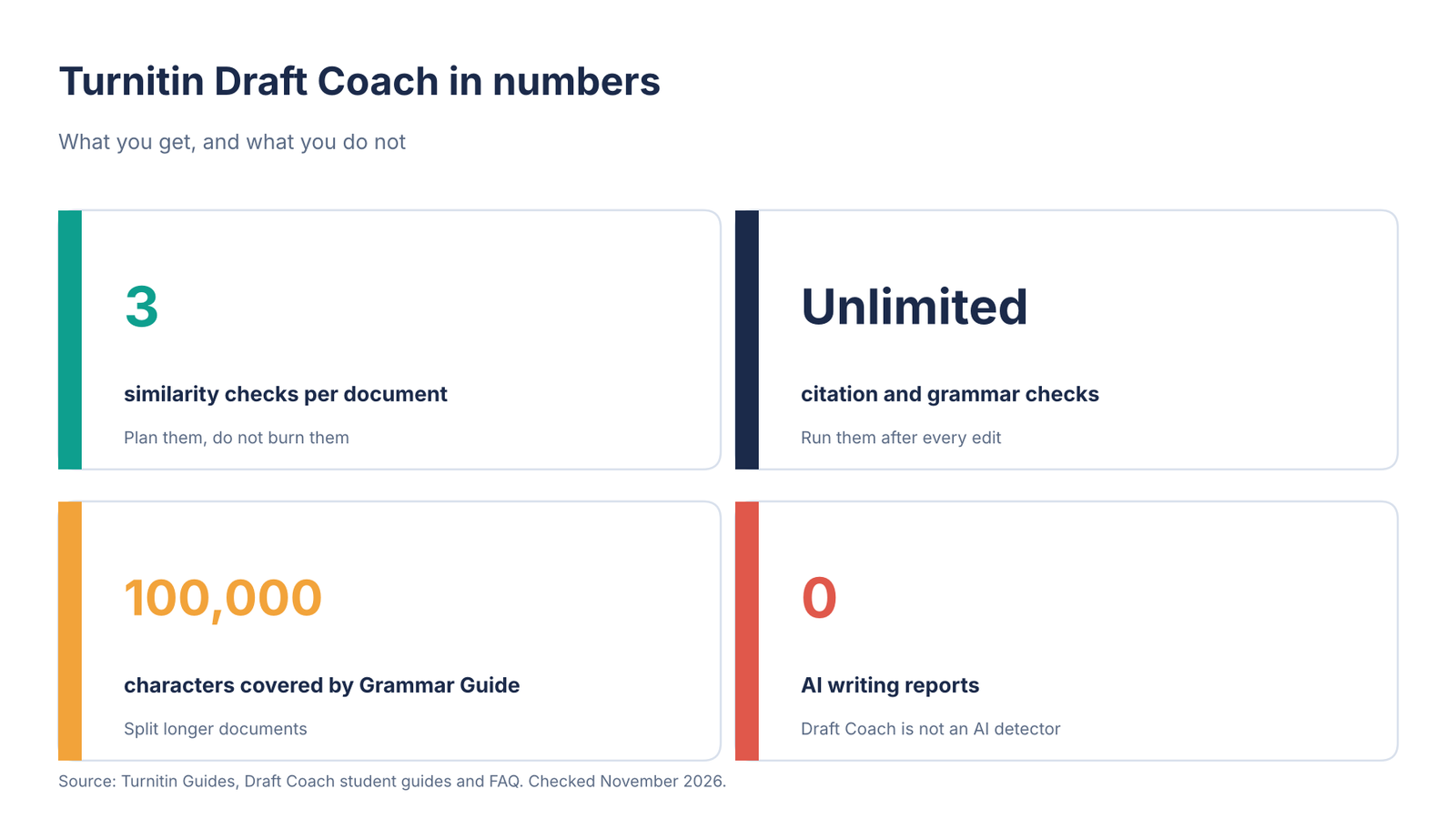
Figure 1: Draft Coach limits at a glance. Source: Turnitin Guides.
What Is Turnitin Draft Coach?
Turnitin Draft Coach is a plugin for online Microsoft Word, and for Google Docs where a school enables it. It gives students access to Turnitin similarity reports, a Citations Check and a Grammar Guide. It guides you from first draft to final draft, and Turnitin built it to explain problems, not to fix them for you.
| Tool | What it does | Limit |
| Similarity Check | Compares your draft with web pages, journals, student papers and your school’s private repository | 3 per document |
| Citations Check | Finds citations with no reference, and references with no citation | Unlimited |
| Grammar Guide | Flags grammar, mechanics, usage and structure issues with explanations | Unlimited, first 100,000 characters |
One feature matters a lot. According to Turnitin’s Draft Coach FAQ, Draft Coach does not save your draft to Turnitin’s repository or your school’s private repository. So your final submission will not match your own draft.
On some university assessment platforms, students never see a similarity report. Draft Coach gives you a preview before the deadline.
Can You Use Turnitin Draft Coach? Check Access First
Draft Coach is license dependent. Your school’s Turnitin administrator must turn it on, and they pick either Google Docs or Word online, not both. It does not work in the desktop version of Word.
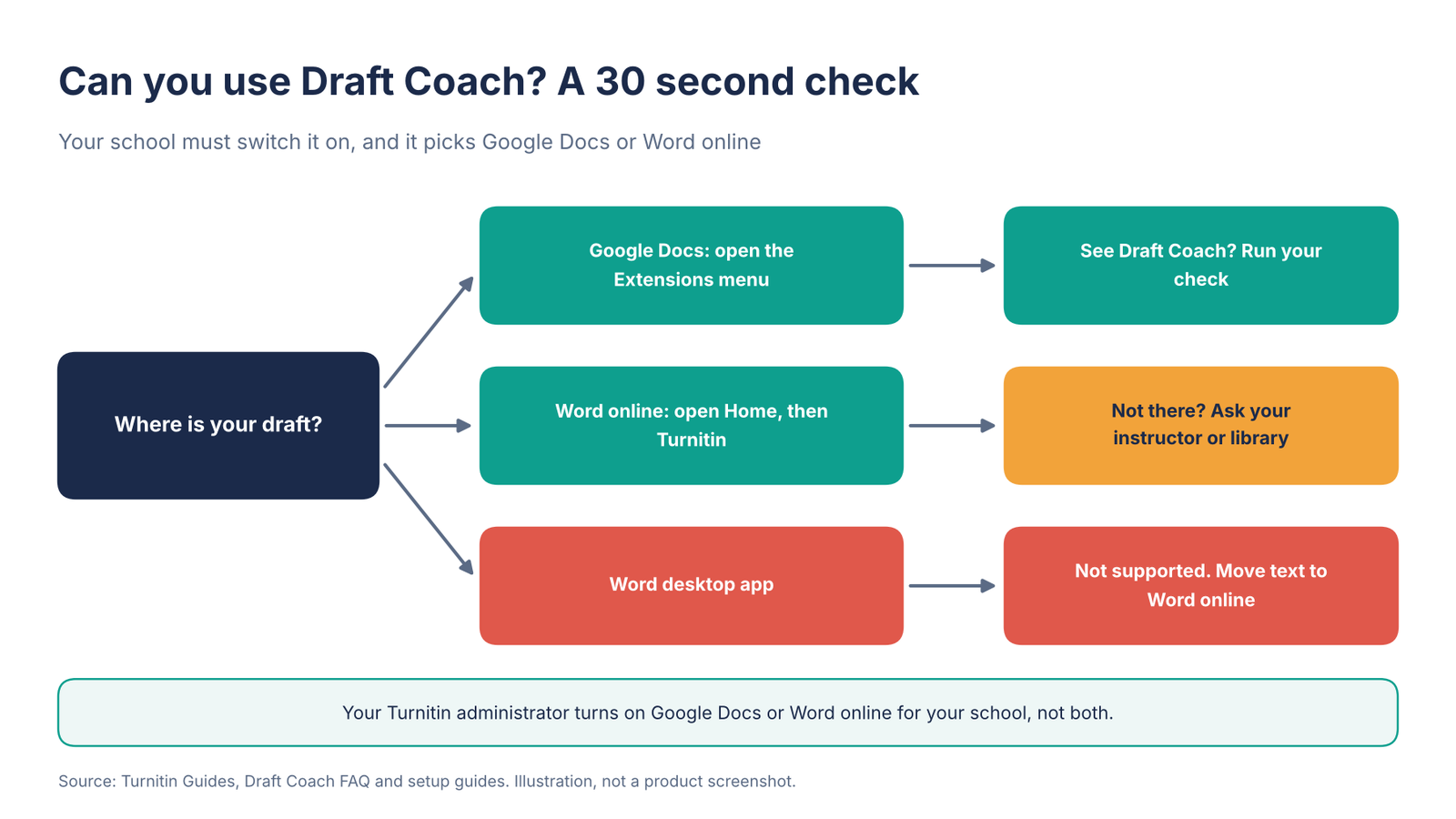
Figure 2: Which editor works with Draft Coach. Source: Turnitin Guides. Illustration, not a product screenshot.
If you cannot find it, use this table before you contact anyone.
| Problem | Fix |
| No Turnitin menu or tab | Refresh the page. If it is still missing, your school may not have enabled it. Ask your instructor or library. |
| You are in desktop Word | Open the document in Word online instead. Draft Coach does not support the desktop app. |
| Wrong account | Sign in with your school account, not a personal one. |
| Panel will not open and shows an error | Allow pop-ups in your browser settings, then try again. |
| You use Google Docs but your school chose Word | Ask which editor your school enabled, then move your text there. |
| Report will not run | Your document needs at least 20 words, according to university help guides. |
No access yet? You can still get a similarity score while you wait with our free plagiarism checker. More options are in the section on what to do without Draft Coach.
How to Use Turnitin Draft Coach in Google Docs and Word Online
Open Draft Coach in Google Docs
- Open your assignment in Google Docs. Sign in with your school account.
- Click Extensions in the top menu, then choose Turnitin Draft Coach. Menu names can differ by school, and older guides show an Add-ons menu.
- The Draft Coach panel opens on the right side of your document.
- Pick a check from the panel.
Open Draft Coach in Word online
The first time, you need to add the tool. Sign in at office.com with your school email, then open a Word document online.
- Select Insert, then Add-ins.
- Choose Admin Managed, then Turnitin Draft Coach.
- In the right-hand panel, select Get Feedback Now.
For later documents, select Home, then Turnitin, then Draft Coach. The steps come from Turnitin’s Word online guide.

Screenshot: the Turnitin tab and Draft Coach button in Word online.
How to Run a Turnitin Draft Coach Similarity Check
You have three similarity checks per document, so treat each one like a rehearsal.
- Open the Draft Coach panel.
- Select the Similarity tab, then Run Similarity Check.
- Draft Coach shows how many checks you have left. Select Confirm to continue or Cancel to keep working.
- Do not edit your text while the report runs.
- Review the results in the side panel.
- Select View Full Report at the bottom of the panel for the interactive version.
- After you revise, select Run New Similarity Check.
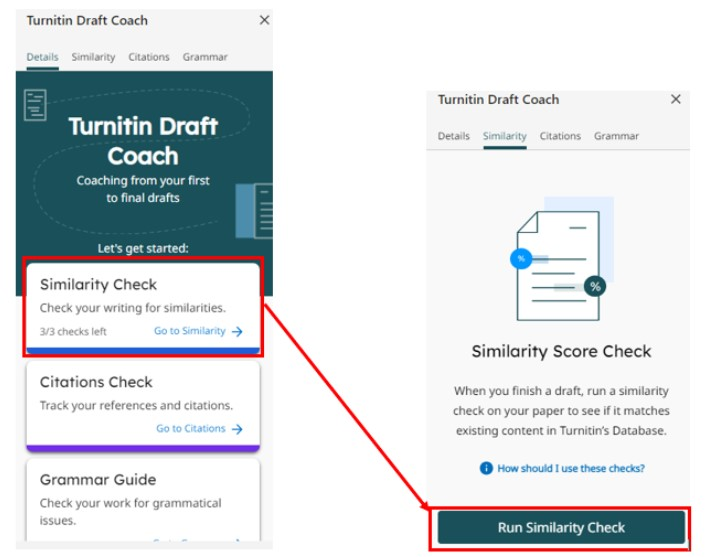
Screenshot: the Similarity Check card (left) and the Run Similarity Check button (right).
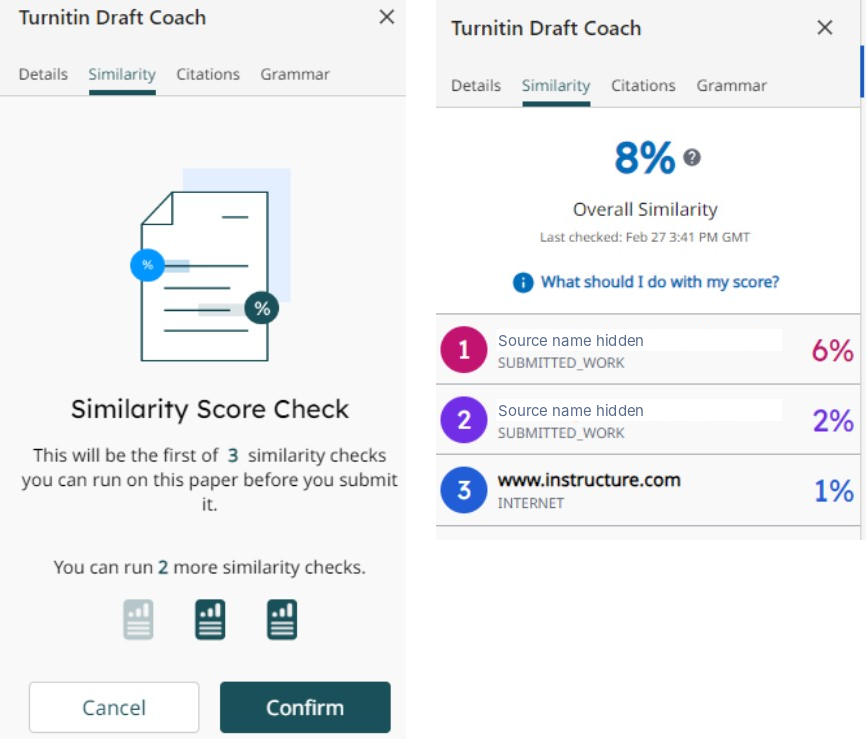
Screenshot: the confirm box (left) shows how many checks you have left. The report (right) shows the overall percentage and numbered sources. Source names are hidden.
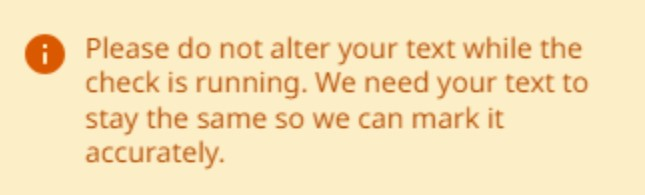
Screenshot: the warning you see while the check runs. Leave your text alone until it finishes.
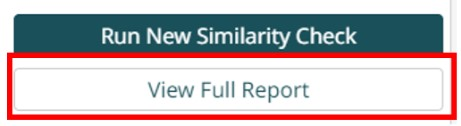
Screenshot: View Full Report sits under Run New Similarity Check.
How to Read Your Draft Coach Similarity Report
A report has two parts. A match is text in your draft that is similar to a source. A source is where Turnitin found it, such as a web page, a student paper or a journal.

Figure 3: Matches sit in your text. Sources sit in the side panel. Illustration based on Turnitin’s report guide, with invented sample text.
Matches are color coded and numbered so you can link each highlight to its source. Use this table to decide what to do next.
| What you see | What it means | What to do |
| A highlighted sentence | A match with a source | Check if it has quotation marks and a citation |
| A numbered, colored source | Where the match was found | Open it and compare the wording |
| Many matches to one source | You may lean on one source too much | Paraphrase more and add other sources |
| Matches in your reference list | Normal for a well referenced paper | Exclude the bibliography in the full report |
| A high percentage | Not proof of plagiarism | Review every match, then ask your instructor about limits |
Turnitin sets no good or bad similarity percentage. Your school or instructor may set one, so ask. For more context, read our guide to acceptable Turnitin scores.
Use the full report settings
In View Full Report, you can switch between Sources Overview and All Sources. Overview lists the top matching sources. All Sources lists every match.
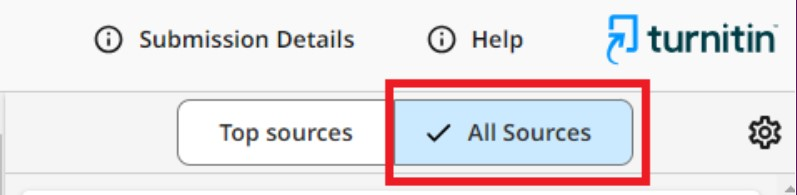
Screenshot: switch between Top sources and All Sources, and open the settings cog.
The settings cog lets you hide internet, publication or student paper matches. It also lets you exclude your bibliography, quotes, citations and small matches. These exclusions are temporary. They do not carry back to Draft Coach, and they do not appear in your download.

Screenshot: choose which repositories to show and what to exclude. These changes are temporary.
How to fix matches
Turnitin’s own advice has three parts:
- Keep only your most important quotes.
- Explain ideas in your own words instead of quoting.
- Cite all of your evidence in the right style.
If you need practice, read how to paraphrase without plagiarizing. Our free AI paraphraser can show you alternative wording to learn from. Cite the source either way. After you edit, a quick similarity check shows whether the new wording still sits too close to the source.
The 3-Check Plan: How to Spend Your Similarity Checks
Turnitin tells students to spread their checks across drafts. Here is a simple plan to do that. The timing is our suggestion, not a Turnitin rule.
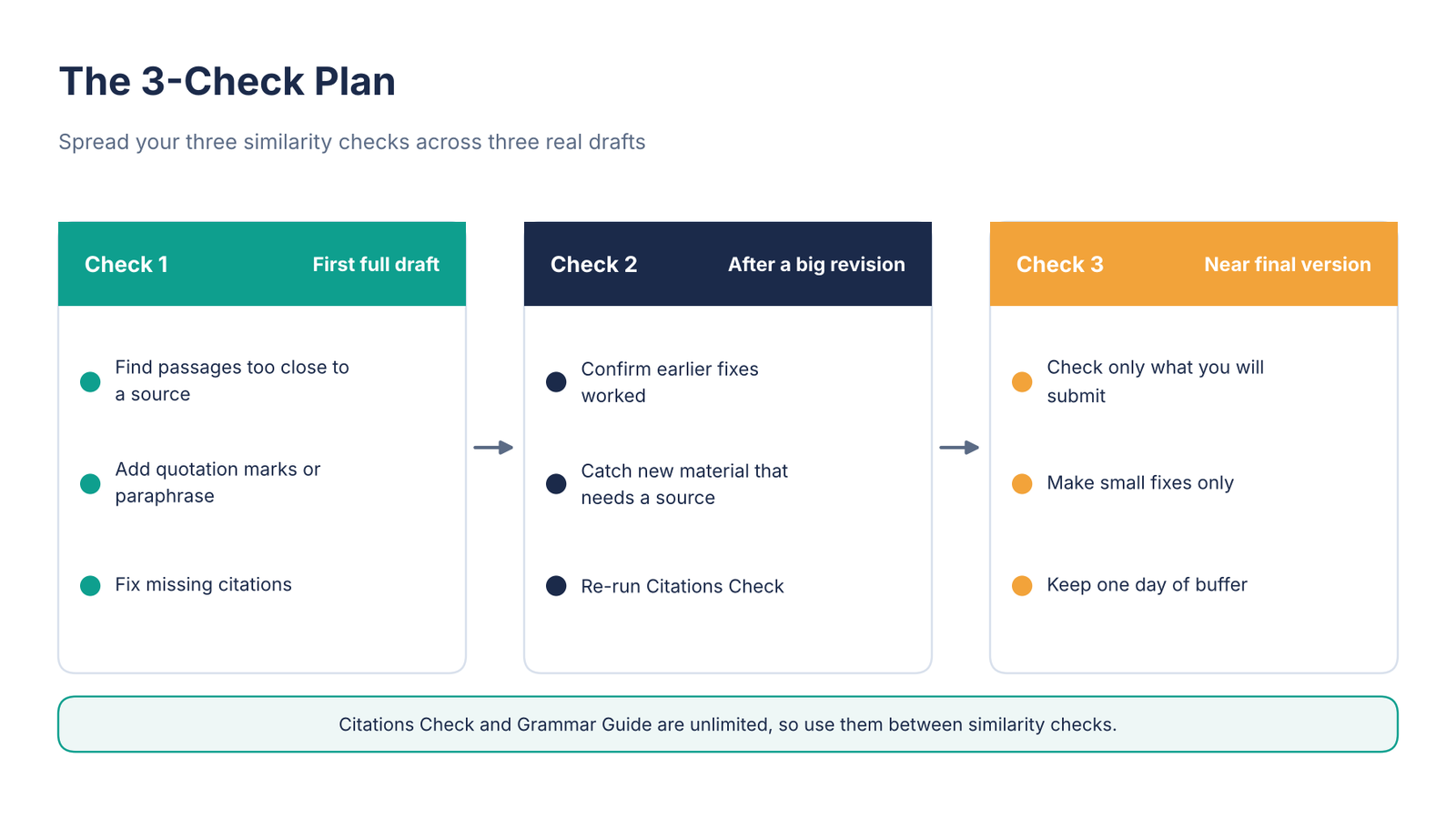
Figure 4: The 3-Check Plan.
| Check | When | Your goal |
| Check 1 | First full draft, about a week before the deadline | Find passages too close to a source and fix missing citations |
| Check 2 | After a big revision, about three days before | Confirm your fixes worked and catch new material that needs a source |
| Check 3 | Near final version, the day before | Check what you will submit and make small fixes only |
A tip that saves checks: run the unlimited Citations Check and Grammar Guide first. Clean up those issues, then spend a similarity check on a tidier draft.
How to Use the Citations Check and Grammar Guide
Citations Check
This check counts your citations and references, detects your citation style and lists two kinds of issues: a citation with no reference, and a reference with no citation. Your citation count should be equal to or higher than your reference count.
There are two limits to know:
- Style support. Turnitin lists only APA and MLA. If your course uses Harvard, Chicago or IEEE, treat the results with caution. Our referencing style picker helps you confirm which style you need.
- A blind spot. If a source has neither a citation nor a reference, this check will not catch it. A similarity match is more likely to show it.
Need clean references fast? Try our free citation generator.
Grammar Guide
Grammar Guide uses US English rules. It sorts issues into four groups: grammar, mechanics, usage and structure. Each issue includes an explanation and examples.
It does not search for spelling mistakes, though it may spot some typos. It only reports on the first 100,000 characters, so split a very long document. If you write in UK English, some flags may not apply. You decide which suggestions to accept.
Does Turnitin Draft Coach Detect AI?
No. Draft Coach covers similarity, citations and grammar. A 0% similarity score tells you nothing about whether text looks AI generated. Whether you can see any AI report depends on your school’s settings.
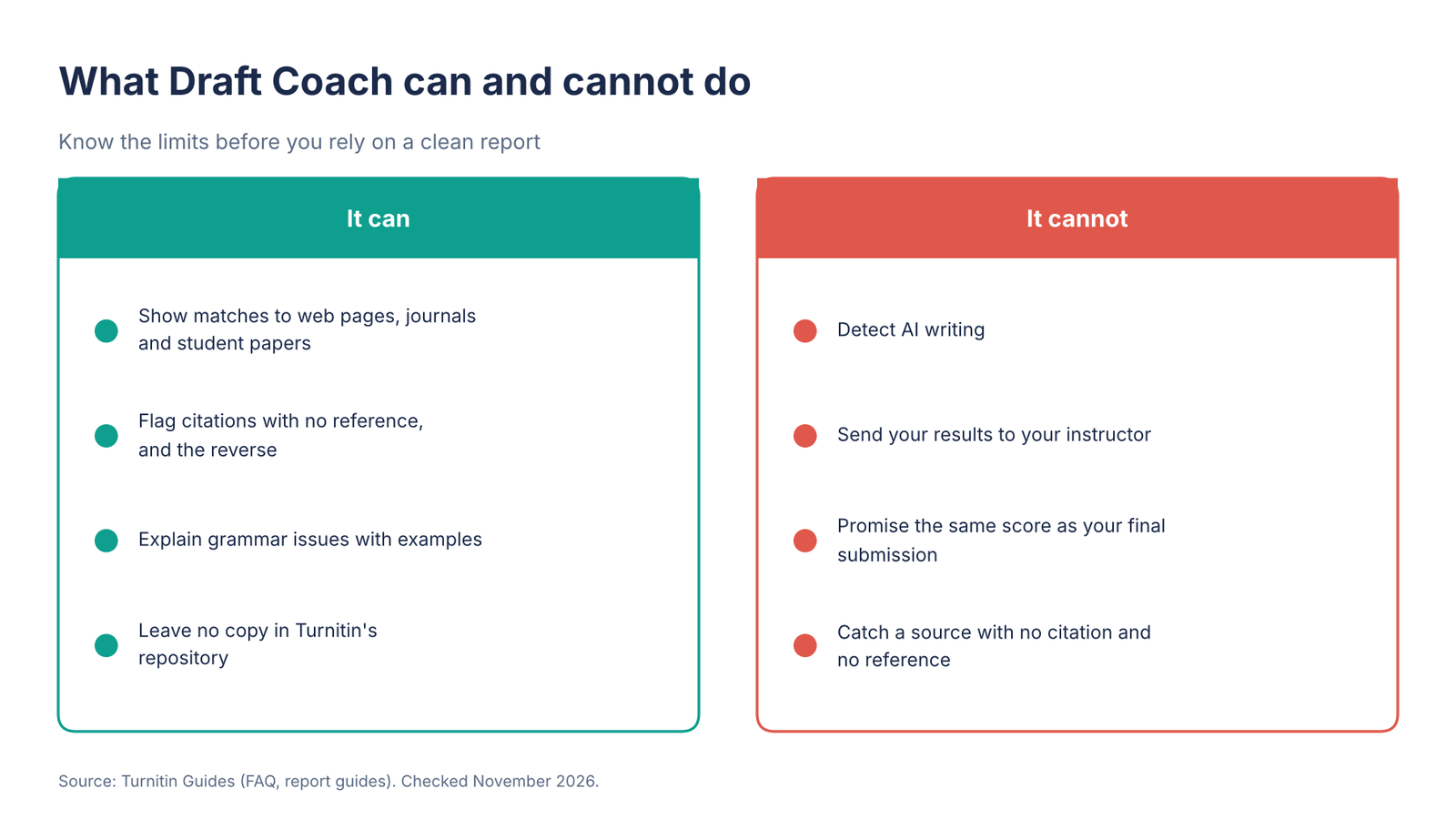
Figure 5: What Draft Coach can and cannot do. Source: Turnitin Guides.
If you want a separate signal, our free AI content detector gives a sentence level score. It is not Turnitin’s detector, so treat it as a rough guide. See how the options compare in our best AI content detectors review. And check your course rules first with our guide on whether using AI for essays is cheating.
Draft Coach vs Your Final Turnitin Report
Do not expect the two scores to match exactly. Sources, filters and settings can differ, and no fixed adjustment predicts your final result.
| Question | Draft Coach | Final submission |
| When do you use it? | While you write | When you submit through your assignment |
| Does it store your draft? | No | Depends on your school’s settings |
| Can you send results to your instructor? | No, Turnitin says there is no way to share them | Your instructor sees the report |
| Is there an AI report? | No | Possibly, if your school enables it |
| Does it submit your work? | No | Yes |
No Draft Coach at Your School? Try These Options
Many schools have not turned Draft Coach on. You still have routes.
| Option | Best for | The catch |
| Ask for a draft submission folder | The closest match to your final report | Your instructor must offer it, and settings vary, so ask if drafts are stored |
| Use our free plagiarism checker | A quick similarity percentage with no word limit | It is not Turnitin, so scores will differ |
| Use our free AI content detector | A separate AI writing score with sentence level highlights, since Draft Coach has none | It is not Turnitin’s detector, so treat the score as a rough guide |
| Review the draft with a tutor | Fixing citations and paraphrasing properly | Takes a short session |
Run the plagiarism checker and the AI detector on the same draft. They answer different questions: one finds matching text, the other estimates how much reads as AI written.
Our checker searches public web pages, Wikipedia and over 250 million scholarly works. You can upload PDF, DOCX or TXT files and exclude your bibliography, quotes and small matches. The overall percentage is free, and the full source report is a paid add-on.
Turnitin also searches paywalled journals and a private database of student papers. Public tools cannot reach those, so expect your Turnitin score to differ. Use any checker to find uncited passages early, then let your school’s check confirm the final version.
Your Pre-Submission Checklist
Before you submit, confirm each point. Our assignment checklist generator builds a full version for your assignment type.
- Every citation has a reference, and every reference has a citation.
- Every direct quote has quotation marks and a citation.
- You reviewed each match, not just the percentage.
- You checked grammar flags and ignored the ones that do not fit your style.
- You know your course’s AI rules.
- You saved a copy and submitted through your official portal. Draft Coach does not submit your work.
Conclusion: Use Draft Coach as a Rehearsal, Not a Verdict
Turnitin Draft Coach works best when you plan it. Check access early, run the unlimited tools first, spread your three similarity checks across real drafts, and review every match yourself. Remember what it cannot do: it does not detect AI, and it does not predict your final score.
Want a second pair of eyes on your report? Book your free 20 minute trial session with a verified PrestoExperts tutor, browse our tutoring directory, or message us on WhatsApp and we will match you with the right expert.